Help & Support

How to Use VigilWatch

Everything you need to know — from getting started to exporting evidence for law enforcement.

🚀 Quick Start Guide

Get VigilWatch running in under two minutes.

Download VigilWatch from the App Store or Google Play. Open it and grant Bluetooth permission when prompted — this is required for the app to detect nearby devices. Location permission is needed for the Follow-Me detection algorithm to function.
Go to the Zones tab and create at least one zone — start with "Home." Give it a name and set the radius (100m is recommended for most situations). Zone names appear in device history and on exported reports, which helps law enforcement understand the geographic context.
Go to the Scan tab and tap the VigilWatch logo to run an 8-second Manual scan. You'll see all detected Bluetooth and WiFi devices appear in the live feed in real time. The stats bar shows totals for BT, WiFi, and any alerts.
Immediately after your first scan, go to the Devices tab and find your own phone, laptop, AirPods, etc. Tap each one and reclassify it as "Own." This prevents false alerts on your own devices and helps the threat algorithm work more accurately.
On the Scan screen, tap "Interval" and choose a scan interval (5–60 minutes). VigilWatch will scan automatically in the background. A strong signal (-40 dBm) on an unknown device means it's physically very close right now.
💡

Pro Tip: Set up Home and Office zones before your first scan so that zone names attach to all sightings from day one — this makes exported reports much more useful.

📡 Scan Modes

Choose the right mode for your situation.

Tap the logo on the Scan screen to trigger a single 8-second scan. Best for quick situational checks — e.g., you notice something suspicious and want to see what's nearby right now. All results are saved to Scan History automatically.
An extended 30-second sweep with the screen active. Use this when you want a thorough detection pass — such as settling into a hotel room, an unfamiliar venue, or a new workspace.
Automatically scans every 5, 15, 30, or 60 minutes in the background. This is the recommended mode for all-day passive monitoring. Note: iOS restricts background Bluetooth scanning, so for best results keep VigilWatch in the foreground when possible, or use shorter intervals.
⚠️

iOS Limitation: Apple restricts background Bluetooth scanning on iOS. For the most reliable detection, keep VigilWatch foregrounded during important scans, or set short Interval mode intervals (5 minutes).

🎯 Threat Classification

Every detected device is assigned one of five classification levels.

Devices you've identified as your own: your phone, laptop, AirPods, smartwatch, etc. Classify these immediately after your first scan to prevent false alerts. Own devices are excluded from threat calculations.
Devices belonging to trusted people — family members, roommates, colleagues. Mark these as Friend to prevent false alerts when you're in the same location as them.
The default classification for any newly detected device. All new devices start as Unknown. Over time, repeated sightings across multiple locations may cause the algorithm to promote them to Concern or Threat automatically.
Devices that have been seen multiple times or across more than one location but haven't yet triggered full Follow-Me detection. Worth keeping an eye on — check back after your next scan to see if patterns develop.
Devices that have triggered the Follow-Me detection algorithm, or that you've manually promoted. These appear at the top of the Watchlist. Export a PDF evidence report immediately if you believe a Threat device is actively following you.

📍 Follow-Me Detection

The heart of VigilWatch — automatic algorithmic detection of devices following your movements.

VigilWatch uses the Haversine formula to calculate real-world distance between sightings and clusters them into distinct locations (50m+ apart counts as a new location). A Follow Score (0–100) is calculated from five weighted dimensions: location count, geographic span, recency, sighting frequency, and threat classification. Routers and access points receive a score penalty since they're stationary.
A Follow-Me event is triggered when a device is seen at 3 or more distinct locations AND has a Follow Score of 50 or higher. Confidence levels: HIGH (score 75+), MEDIUM (50–74), LOW (score under 50 but still flagged). A Follow-Me Banner appears on the main Scan screen when a follower is detected.
1. Stay calm and move to a public area. 2. Do not confront the suspected tracker. 3. Immediately export a PDF evidence report from the device detail screen. 4. Note the time, your current location, and any physical observations. 5. Contact law enforcement — a HIGH confidence Follow-Me across 4+ locations spanning 2+ km is strong documentation.
🚨

If you feel in immediate danger: Call emergency services (911 in the US) first. VigilWatch evidence reports are for documentation — not a substitute for emergency help.

🔍 Tag Fingerprinting

VigilWatch can identify the specific brand of tracker broadcasting near you — without requiring you to be in Apple's ecosystem or having any prior notification from the tracker's manufacturer.

VigilWatch reads raw BLE advertisement packets directly and compares them against a database of known hardware signatures. Each tracker brand broadcasts a distinctive service UUID or manufacturer ID that reveals its identity, even if the device randomizes its MAC address. This happens automatically on every scan — no configuration required.
VigilWatch identifies 7 tracker brands: Apple AirTag (Critical priority — service UUID 0x4C00), Tile (High — manufacturer ID 0x00CC), Samsung SmartTag (High — service UUID 0xFD5A), Apple Find My Accessory (High), Google Find My Device (High), Chipolo (Medium), and TrackR/Atuvos (Medium). When a tracker is identified, a "Tracker Identified" card appears in the device detail screen showing the brand and priority level.
When VigilWatch fingerprints a known tracker, the device detail screen shows a "Tracker Identified" card with the brand name and priority level. Critical and High priority trackers that persist across multiple scan sessions should be investigated immediately. Use UWB Tracker to locate the device, and export a PDF report for law enforcement documentation.
⚠️

Key advantage: VigilWatch detects AirTags, Tiles, and Samsung SmartTags on any iPhone — regardless of whether you use Apple's notification system, which can be delayed by hours or days.

🗺️ Route Contamination Map

Route Contamination detects trackers that have silently followed you across multiple locations over time — the pattern a stalker's device leaves that a single scan can never reveal.

Route Contamination analyzes your scan history across sessions and builds a geographic timeline of every device that has appeared in multiple scans at different locations. When a device appears at 3 or more separate locations alongside you — crossing a configurable distance threshold — it is classified as a follower and triggers an immediate stalker alert. This catches trackers that a single-session scan would miss entirely.
The map shows sighting dots connected by polylines (the device's path), zone circles for your named locations, and color-coded threat markers. At the bottom, device cards show each suspect with their contamination score, session count, and a list of locations. Use the filter tabs (All / Suspects / Stalker Tags) to focus on the most serious threats. Animated score bars show contamination percentage in real time.
1. Do not confront anyone or announce what you found. 2. Note the device ID (e.g., TRACKER_7F2A) and the locations it has appeared. 3. Tap the device and export an evidence PDF immediately — this captures the full contamination timeline. 4. Use UWB Proximity Tracker to physically locate the device if it has a strong signal. 5. Contact law enforcement. The Route Contamination map data combined with the PDF report is compelling evidence.
💡

Tip: Set up named Zones (Home, Office, Coffee Shop, Gym) before using Route Contamination — zone names will attach to sightings, making the evidence report much clearer for law enforcement.

📡 UWB Proximity Tracker

Once you've identified a suspicious device, UWB Tracker lets you physically locate it — narrowing the hiding place to within a few meters.

Open the device detail screen for any detected device and tap "Track with UWB." Alternatively, access UWB Tracker from the Tools hub tab. In Single-device mode, the radar displays the target device's estimated distance (in meters), bearing direction, and a live RSSI sparkline. Walk slowly in different directions while watching the distance reading — move toward the signal peak to close in on the device.
Single-device mode focuses on one specific target, showing a radar with distance readout, compass bearing, and RSSI sparkline. Multi-device mode shows all active devices as color-coded dots on a shared radar with random-walk physics, a live follow-detection banner, and a list of all tracked devices sorted by distance. Use Single mode when you know which device to find; use Multi mode to get an overview of everything nearby.
The alert threshold (1m, 2m, 3m, 5m, or 8m) controls when UWB Tracker fires an alert that a device is within range. If you're searching a vehicle, set 2–3m. For a room search, 5–8m gives broader coverage. When the distance reading drops below your threshold and the signal is very strong (-40 dBm), you're standing very close to the hidden device.
⚠️

iOS Note: UWB Proximity Tracker uses BLE signal strength (RSSI) to estimate distance — it is not true Apple UWB/U1 chip ranging. Accuracy improves in open spaces and when moving slowly. Use it to narrow the search area, then do a physical inspection.

📶 Bluetooth Devices

Understanding Bluetooth detection in VigilWatch.

VigilWatch detects both Classic Bluetooth and Bluetooth Low Energy (BLE) devices. This includes phones, laptops, headphones, speakers, fitness trackers, AirTags, Tile trackers, and any other BT device broadcasting nearby. Device class is inferred from service UUIDs when available.
RSSI (Received Signal Strength Indicator) is measured in dBm (negative numbers, higher = closer). Guide: -40 to -55 dBm = device is in the same room as you right now. -55 to -70 dBm = device is nearby (same building or adjacent space). Below -70 dBm = device is far away or obstructed. A strong reading (-40 dBm) on an unknown device is significant.
Many modern devices (especially iPhones and Android phones) use MAC address randomization for privacy. This means the MAC address changes periodically, making the device appear as a "new" device each time. VigilWatch uses additional signals (service UUIDs, device name, signal patterns) to help identify returning devices despite randomization.

📡 WiFi Devices

Understanding WiFi access point detection.

For each discovered access point: SSID (network name), BSSID (router MAC address), security type (Open / WPA2 / WPA3), frequency band (2.4 GHz / 5 GHz / 6 GHz), and channel number.
Watch for: Open (unsecured) networks appearing in unusual locations. The same SSID appearing across multiple locations you visit — this can indicate a mobile hotspot following you. Networks with suspicious names like FREE_PUBLIC_WIFI (a common rogue network tactic). Networks with weak security (WEP or Open) in supposedly secure locations.

📱 Managing Devices

The device detail screen gives you full control over how each detected device is tracked and classified.

Tap any device in the Devices or Watchlist screen to open the detail view. Tap the name field to edit it. Give it a descriptive name — e.g., "Suspicious BT tracker near gym" — so you can identify it quickly in exports.
In the device detail screen, you can add free-text notes (e.g., "First seen at train station, 2pm") and custom tags. Notes appear in the PDF evidence report, providing important context for law enforcement.
The location history shows every place a device has been detected, with your zone names attached. This timeline is the core evidence in your PDF report. It shows a device's full movement pattern relative to your own zones.

📍 Location Zones

Named zones make VigilWatch's evidence far more meaningful and actionable.

Go to the Zones tab. Tap the + button to add a new zone. Name it (e.g., "Home," "Work," "Mom's House," "Coffee Shop"). The zone will be created around your current GPS location with the selected radius.
100m is recommended for most locations — it covers a typical city block and works well for home and office. Use 50m for very specific locations (e.g., your apartment floor). Use 250m–500m for larger areas like campuses or neighborhoods. Note: zones should not overlap if you want clean location attribution.
Zone names are attached to every sighting that occurs within the zone radius. In a PDF evidence report, sightings will show "Home," "Work," etc. instead of raw GPS coordinates — making the report much more readable for law enforcement and legal purposes.

📄 Evidence Export

Generate professional evidence reports ready for law enforcement or legal proceedings.

Open the device detail screen for the suspicious device. Tap "Export" and choose "PDF Report." The report includes: unique case number (VW-YYYYMMDD-XXXX), threat classification, device identity and technical profile, full location timeline (up to 50 sightings with zone names), Daily Pattern radial chart, 14-day Frequency Trend, any notes you've added, and a legal disclaimer. Tap Share to send via email, Messages, AirDrop, or save to Files.
Choose "CSV Export" from the device detail screen to export a full sighting log in comma-separated format, compatible with Excel, Numbers, and Google Sheets. Useful for data analysis or as a supplementary exhibit to the PDF report.

Best Practice: Export a PDF immediately when you detect a high-confidence Follow-Me. A COMMUTE PATTERN + ESCALATING trend, across 4+ locations spanning 2+ km, is compelling documentation for law enforcement.

📊 Analytics

Understand the big picture of what VigilWatch has detected over time.

A 24-hour radial chart becomes available after a device has been seen 3+ times. It visually shows at what hours of the day the device tends to appear. Auto-detected patterns: COMMUTE (morning + evening peaks), NIGHTTIME ACTIVITY (10pm–4am), WORKDAY OVERLAP (9am–5pm), SPORADIC (irregular). COMMUTE PATTERN is particularly significant — it suggests a device is following your daily routine.
A bar chart showing how often a device has been seen each day over the past 14 days, with a regression line. Trend badges: ESCALATING ↑ (shown in red — the device is being seen more frequently over time), DECLINING ↓ (shown in green — threat is decreasing), STABLE → (shown in gray — consistent presence).
The Analytics tab includes an interactive map showing where devices have been detected. Toggle between "By Density" (shows areas of frequent detection) and "By Threat" (color-codes locations by threat severity). Useful for seeing whether suspicious devices are clustering around your home, work, or daily routes.

🔒 Privacy

VigilWatch was designed with privacy as the absolute foundation.

🛡️

Privacy Summary: All data is stored locally on your device. No internet connection is ever required or used. No account, email, or login is needed. Scanning is passive only — VigilWatch never connects to detected devices.

No. VigilWatch has no server backend, no cloud sync, and makes no network requests. All scan data, device history, and location information is stored exclusively in your iPhone's local storage. Deleting the app deletes all data permanently.
Bluetooth: Required to detect nearby Bluetooth devices. Location: Required for the Follow-Me algorithm to cluster sightings by geographic location. Location data never leaves your device. Notifications: Optional — needed for background alert notifications in Interval mode. No camera, microphone, contacts, or any other permissions are required.
VigilWatch performs passive scanning only — it listens to device broadcast signals that are publicly transmitted by design. It never connects to detected devices, injects packets, or interacts with them in any way. This is legal in most jurisdictions worldwide. Always consult local laws if you have specific concerns about your region.
Quick Reference

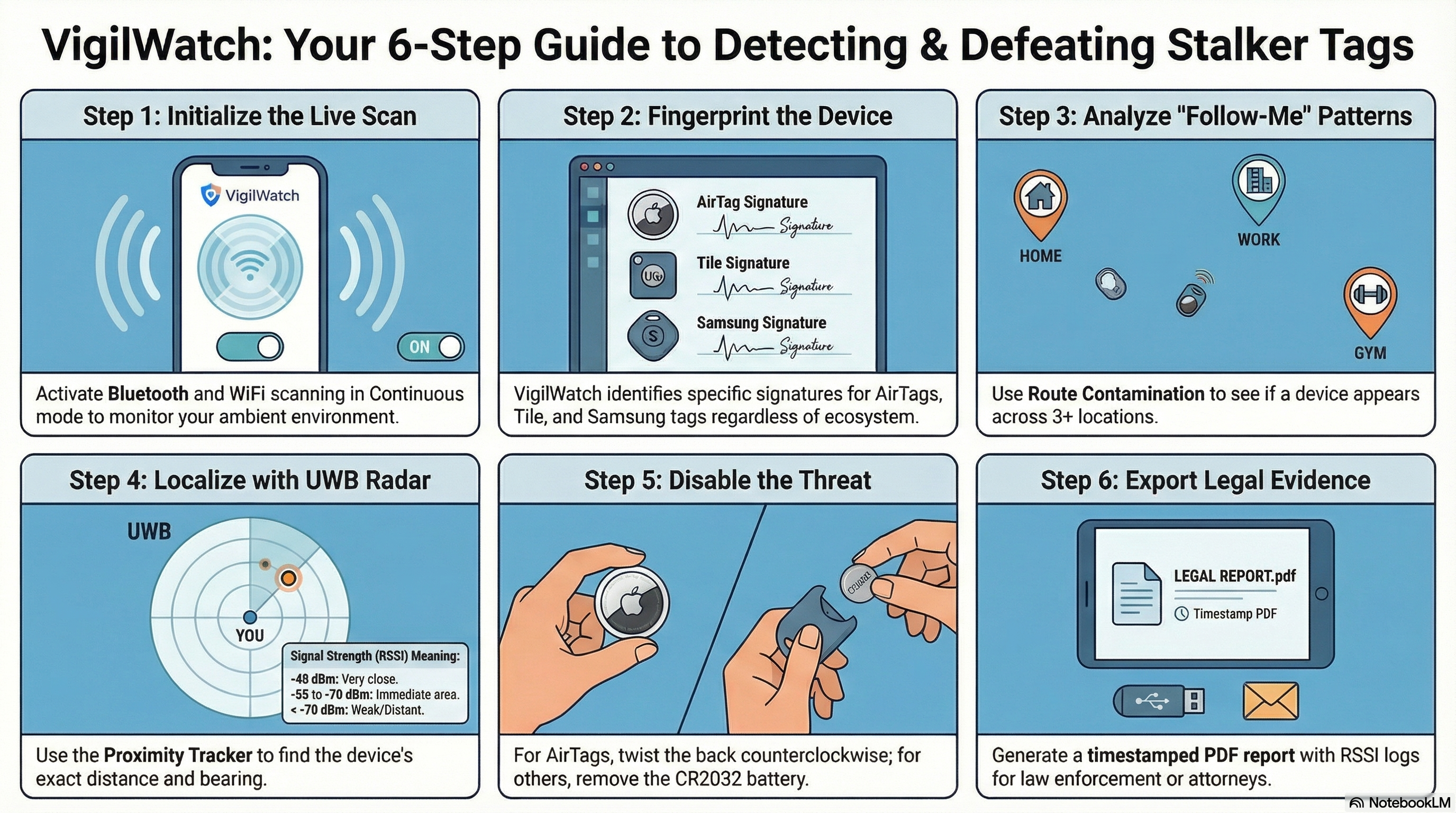
6 Steps to Detecting & Defeating Stalker Tags

A visual guide to finding, identifying, and responding to tracking devices.

6-step guide to detecting and defeating stalker tags

Still have questions?

Join the community forum or reach out directly.

Ask the Community Contact Support